A guided tour
Claude IDE
One desk for working with Claude Code across every project
Arrow keys, space or click to move. G for the overview, F for full screen.
Overview
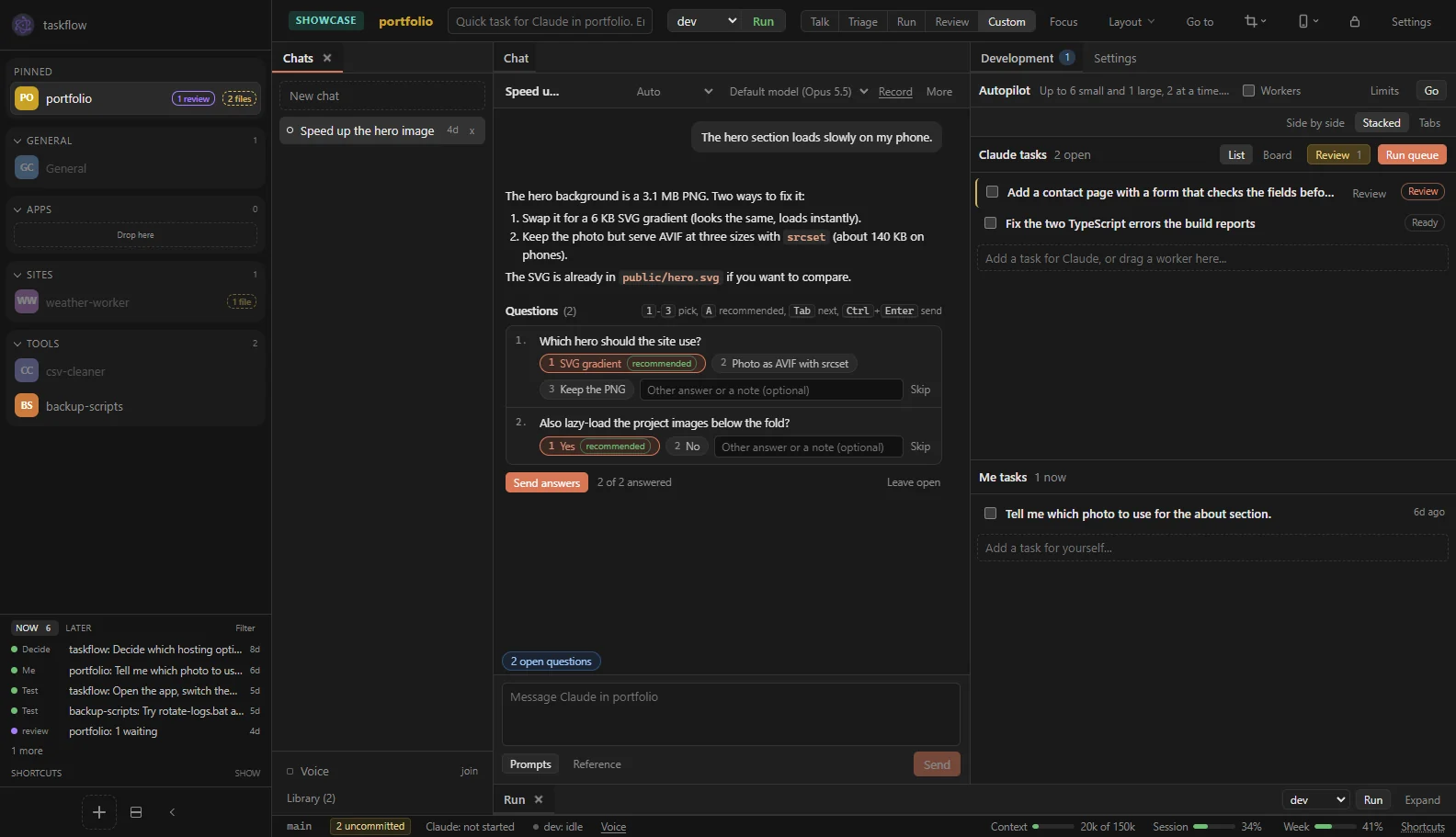
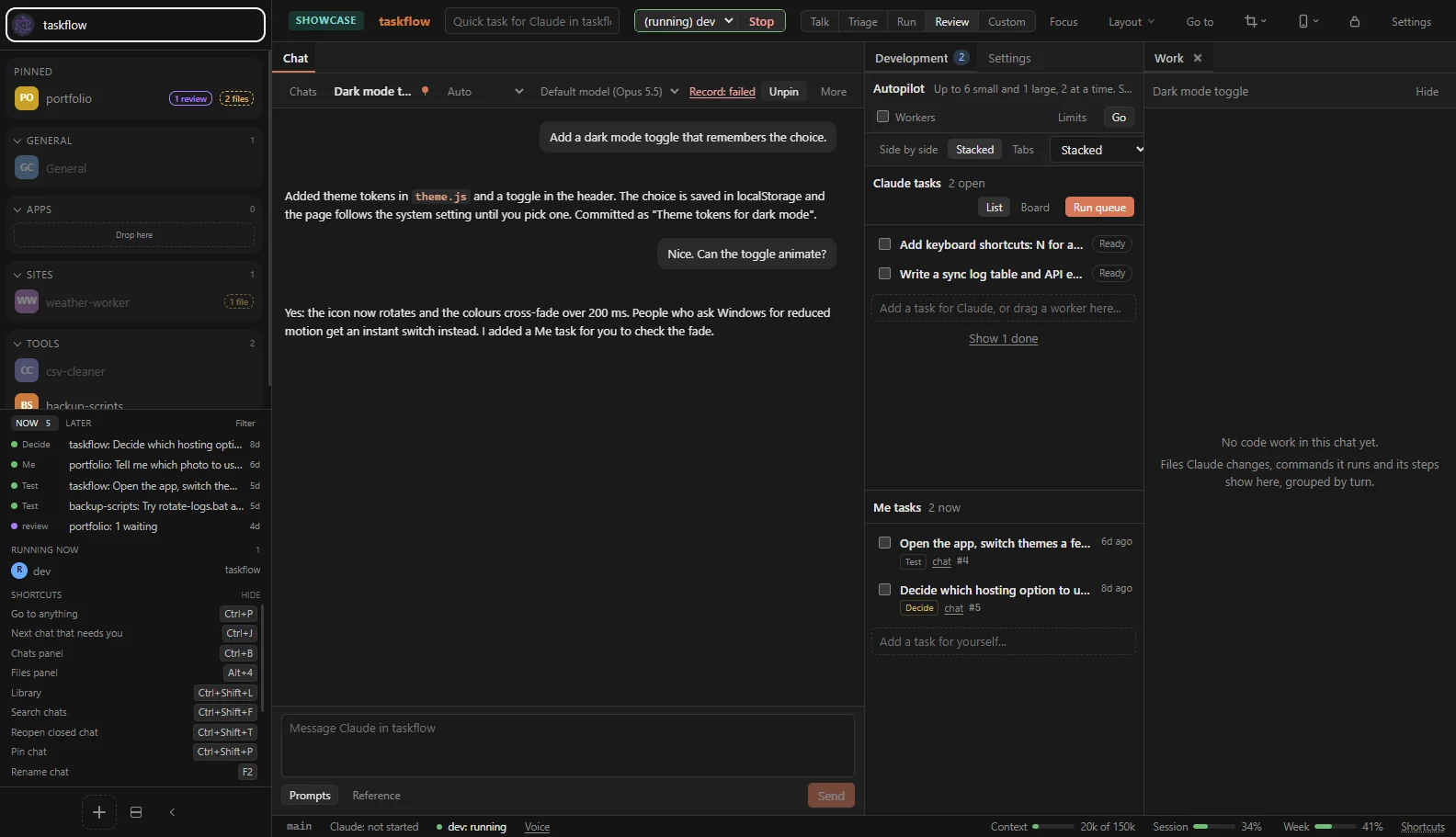
One window, every project
Projects down the left, the conversation in the middle, the project's tasks on the right.
Every panel is a tab you can drag, split or float, and the layout saves itself.
Counts that span projects live only in the left rail, so nothing is counted twice.
Modes
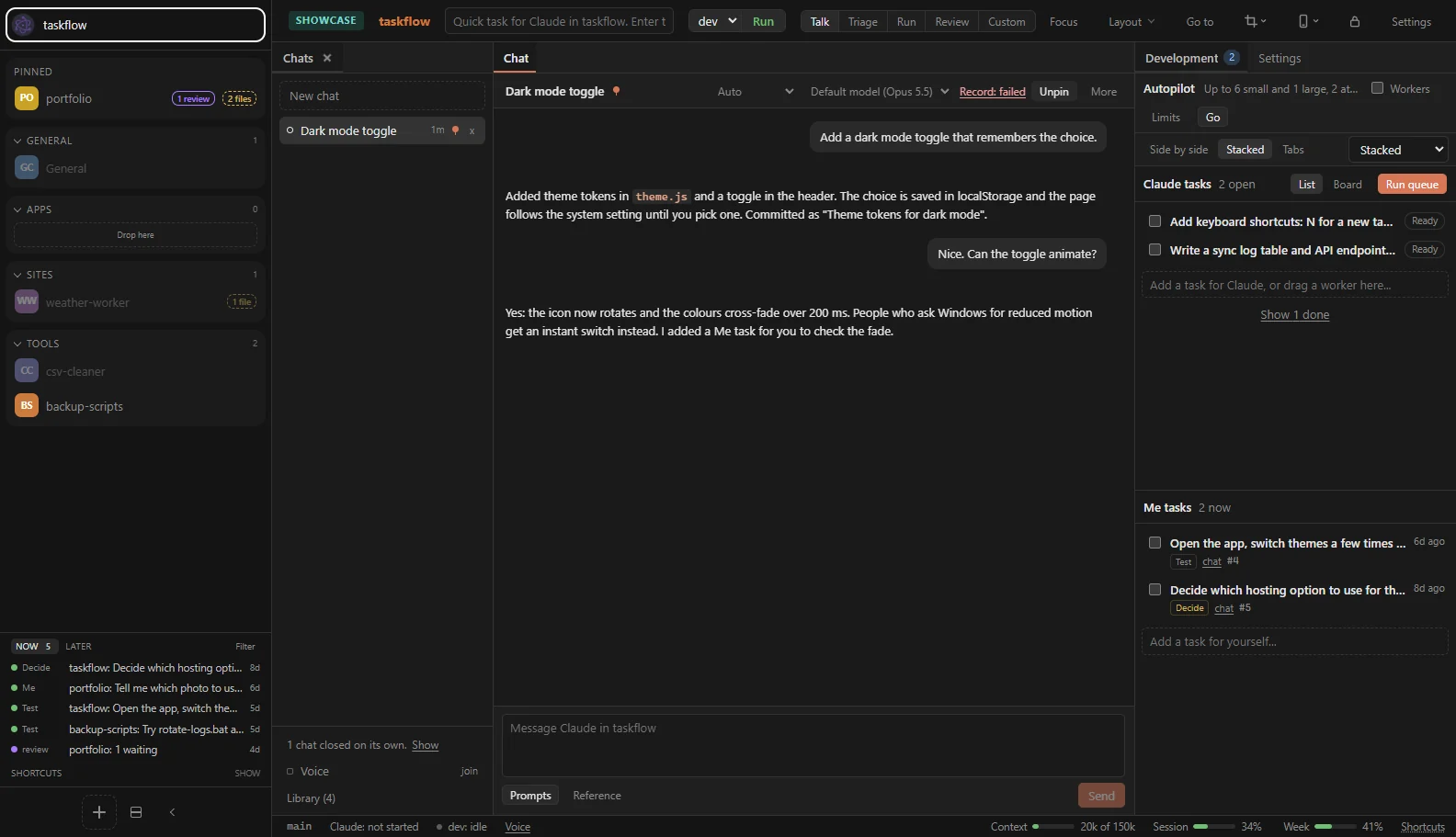
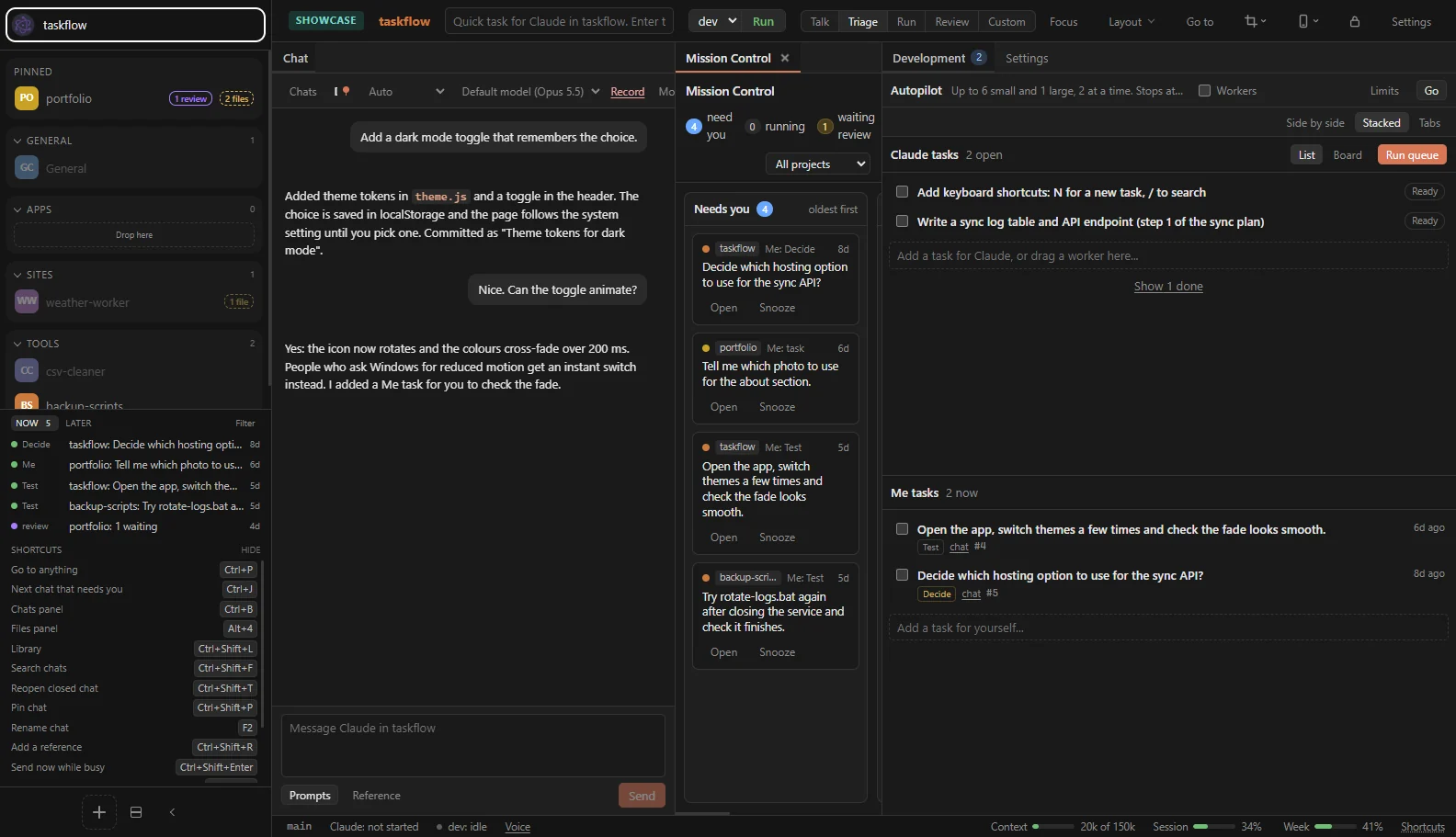
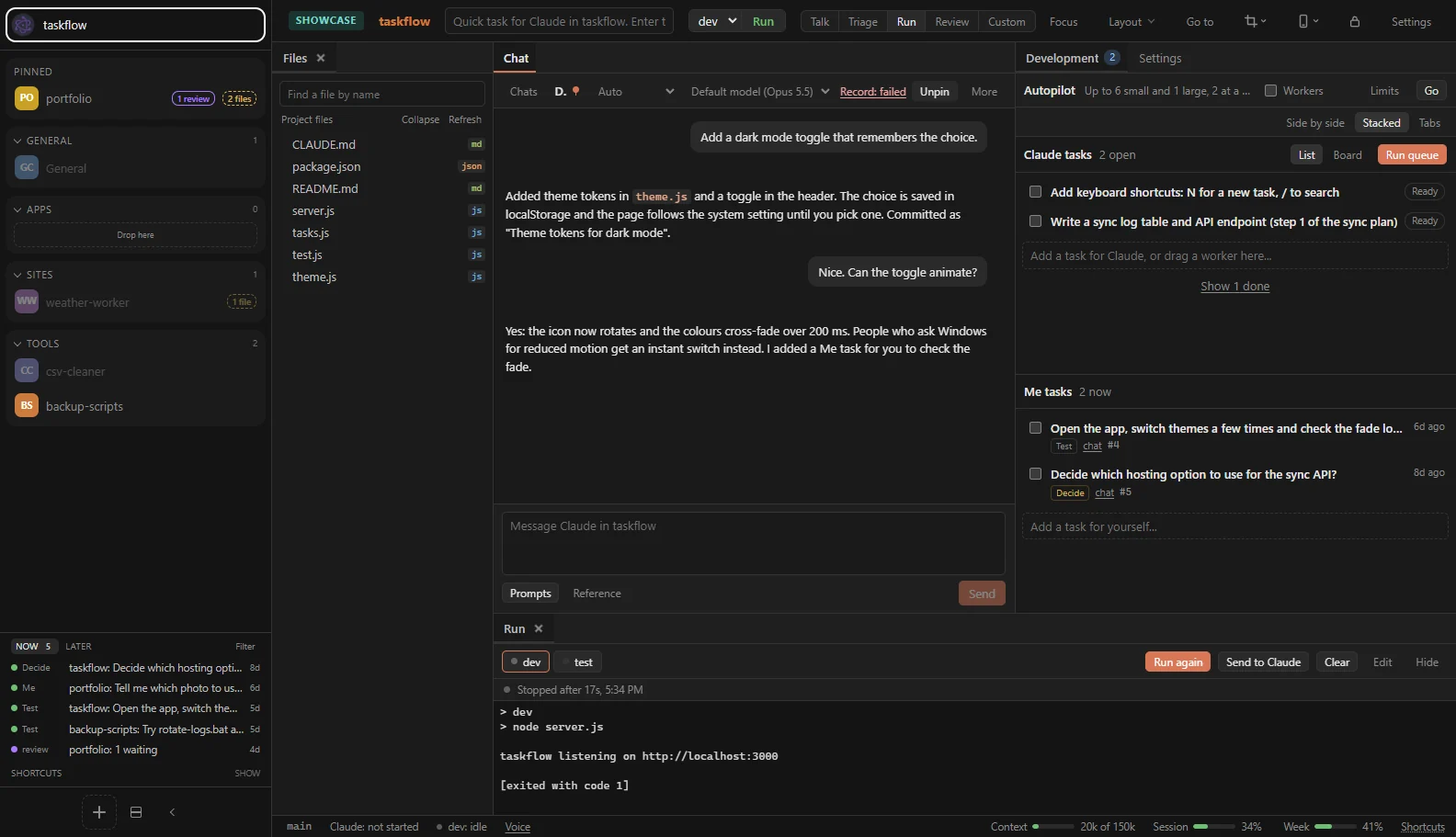
Four modes for four jobs
Talk, Triage, Run and Review are saved layouts for the four things you actually do all day.
One click, or Alt+Shift+1 to 4, rearranges the whole window. Focus hides everything but the chat.
Chats
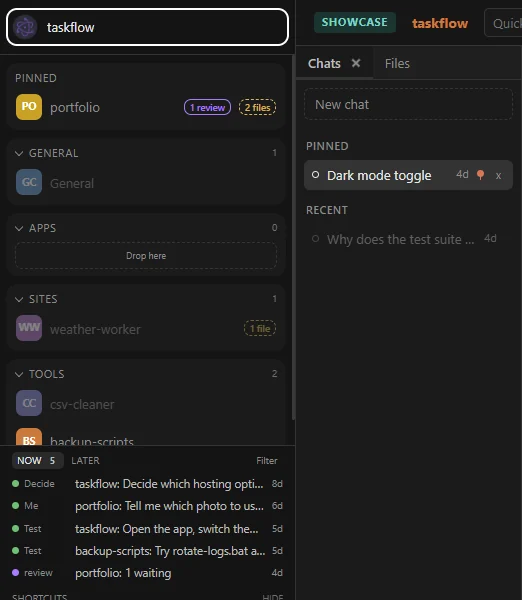
Every chat has a place
The rail lists every project, with a badge for reviews waiting and files not yet committed.
The Chats sidebar groups a project's open chats by what they need: Needs you, Working, Pinned, Recent.
The Inbox collects everything waiting on you across all projects, oldest first.
Chats
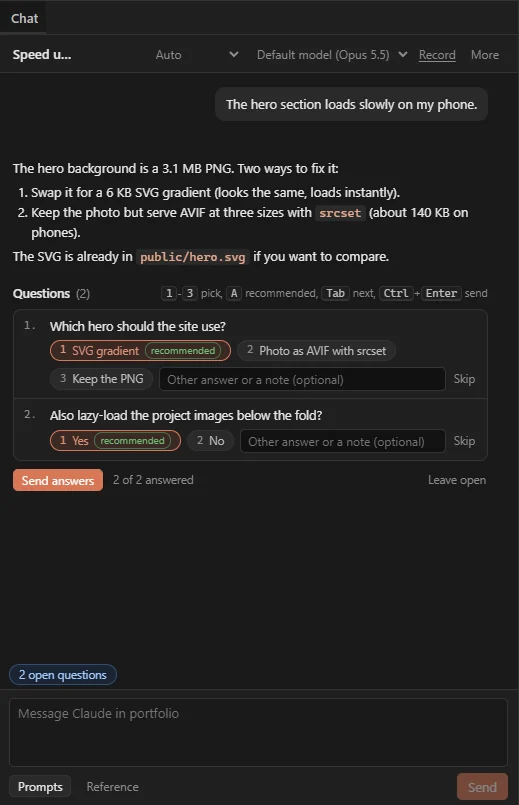
Questions become a form
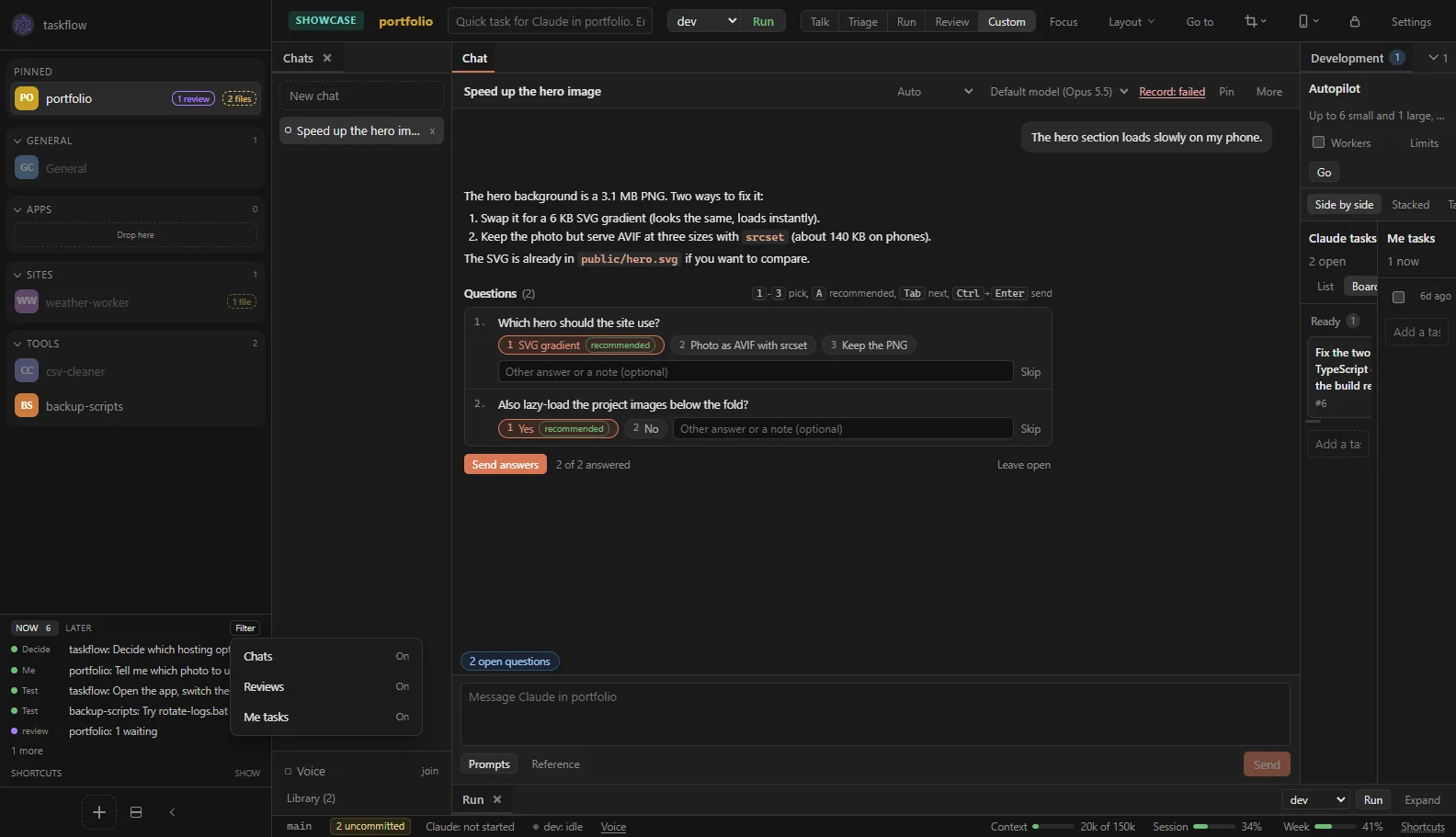
When Claude needs a decision, its reply ends with questions and options. The IDE shows them as a small form with the recommended answer marked.
Number keys pick, A takes the recommendation, and one Send answers them all.
Follow-ups meant for you become Me tasks, linked back to this chat.
Library
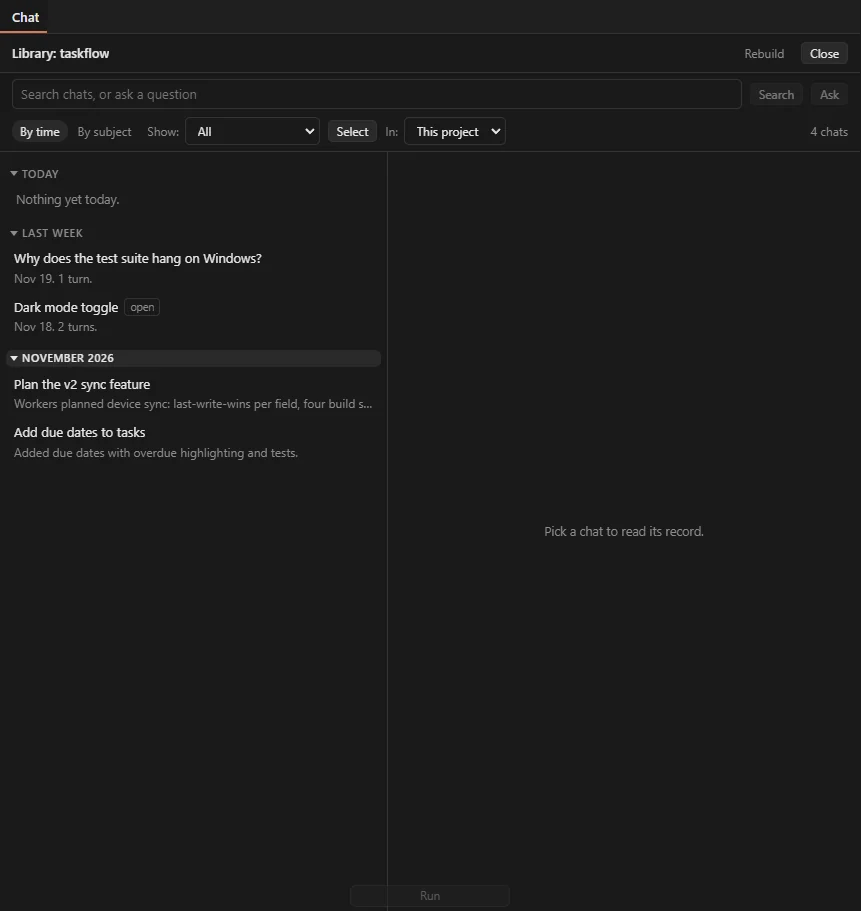
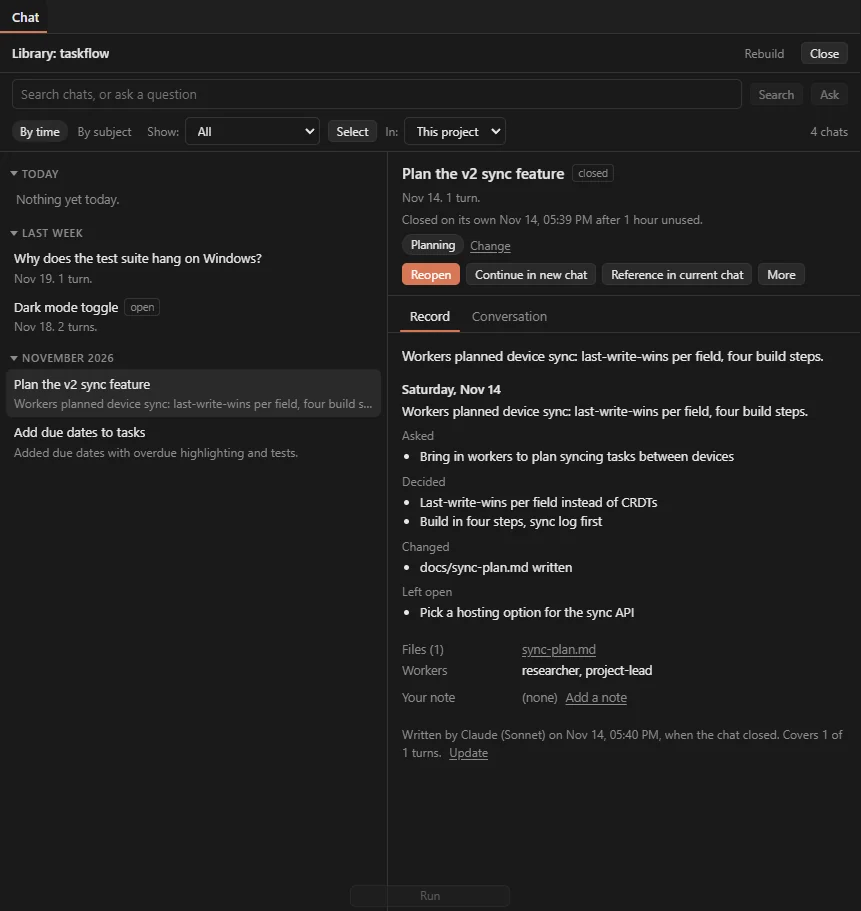
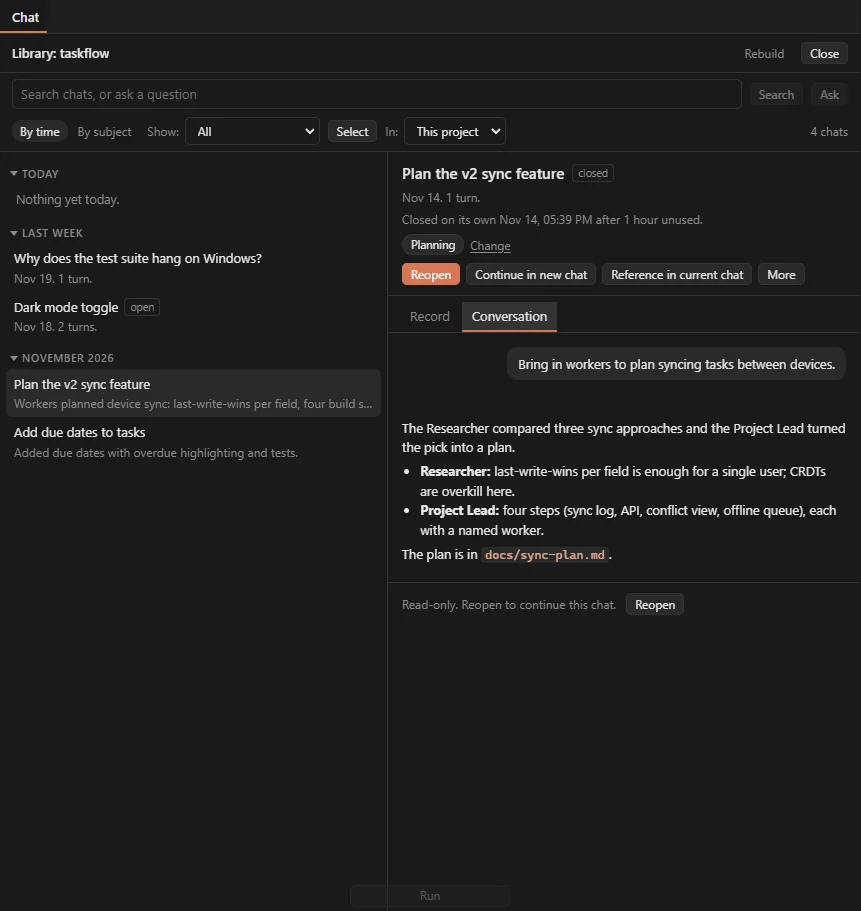
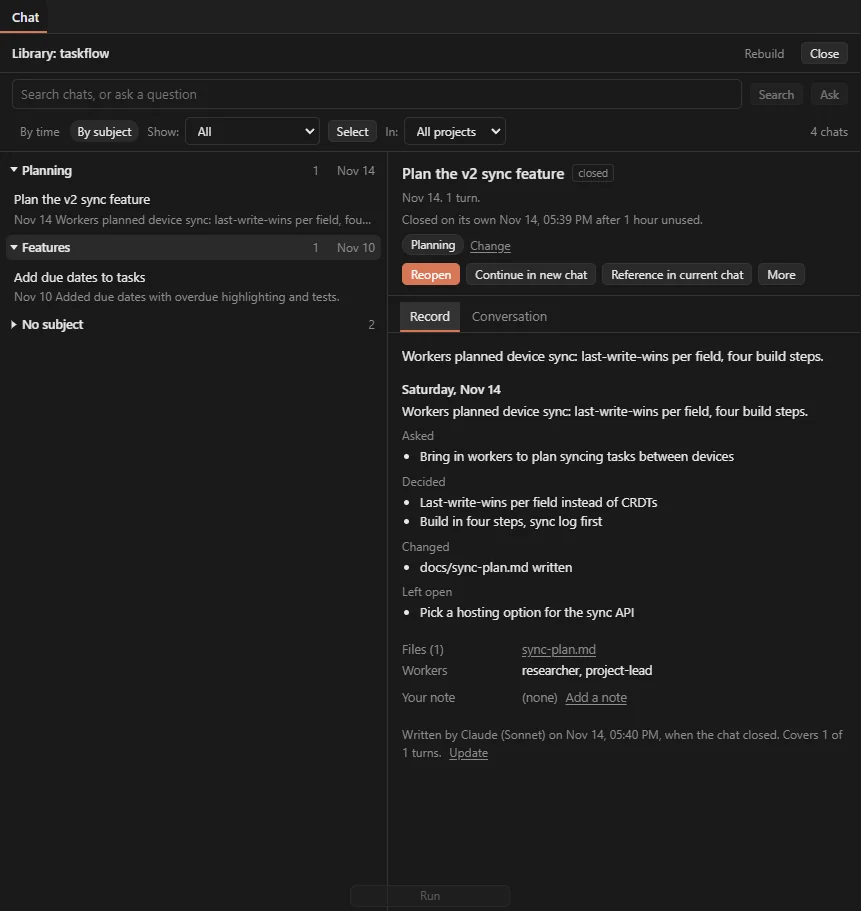
The Library keeps every chat
Closing a chat never deletes it. Every chat of a project, open or closed, lives in the Library.
Browse by time or by subject. Subjects are just labels; changing one moves nothing.
Any chat can be reopened, or continued in a fresh chat.
Records
What was asked, decided, changed and left open
After a chat closes, Claude writes a short record of it in the background.
Read the record instead of scrolling the whole conversation. Continue in new chat starts fresh with the record as context.
Each record says who wrote it and when, and can be updated.
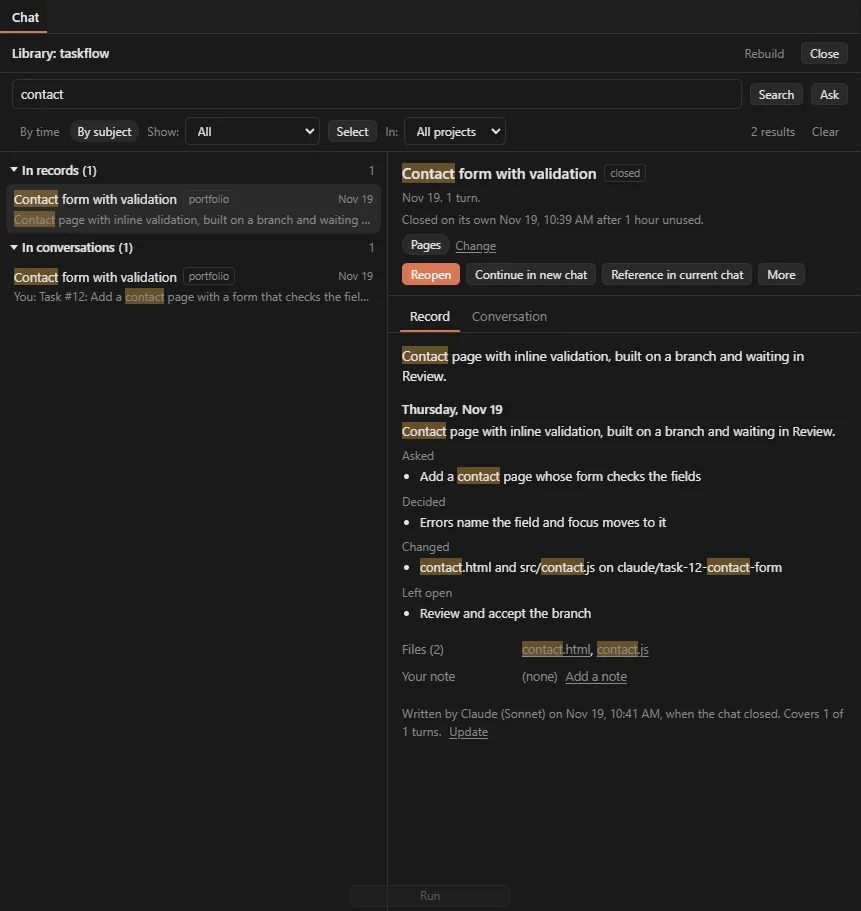
Search
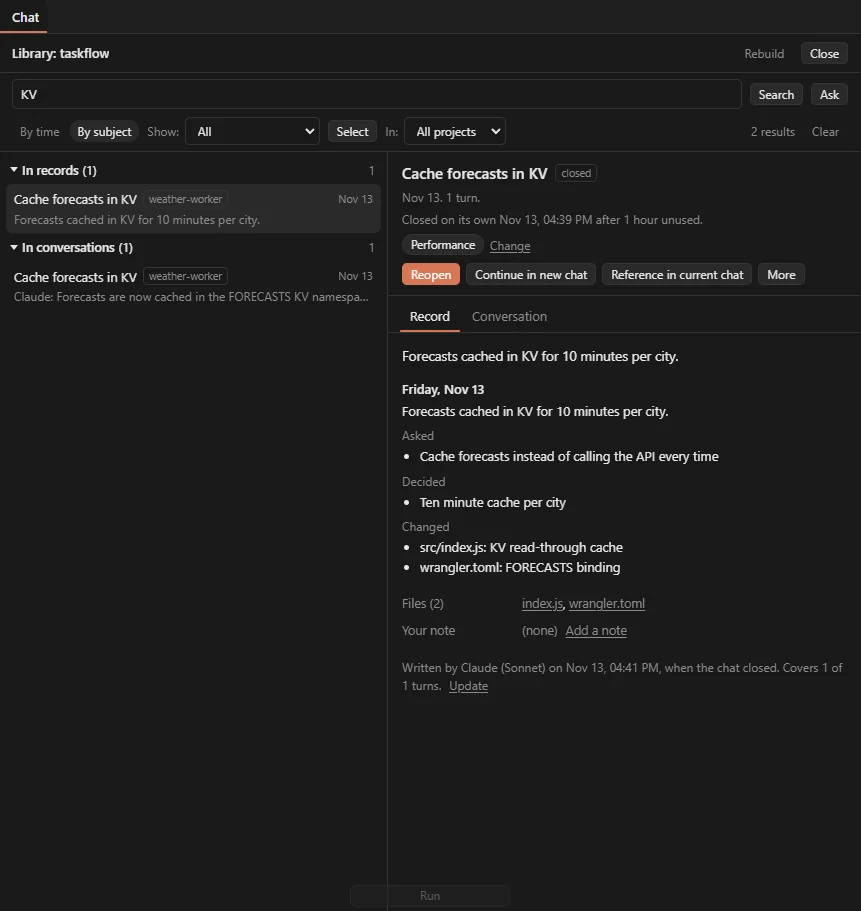
Search across every project
Search covers records and full conversations, newest first, with every match highlighted.
Quoted phrases and file:name narrow it down.
Ask the Library puts a plain question to Claude, which answers from the records alone.
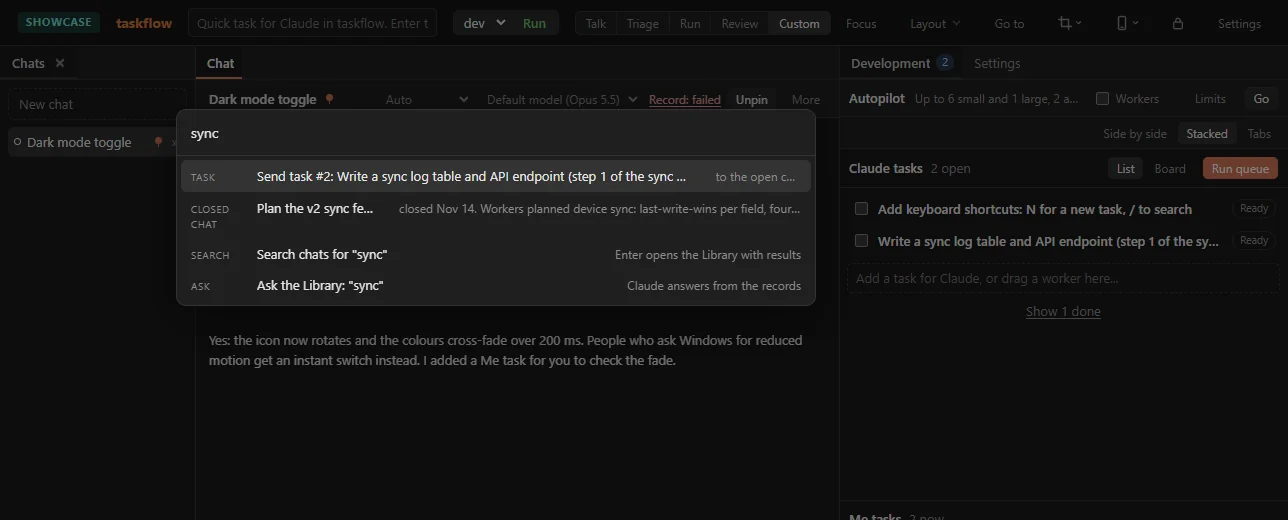
Palette
Go to anything with Ctrl+P
One box finds tasks, open and closed chats and projects.
It also offers Search chats and Ask the Library for whatever you typed.
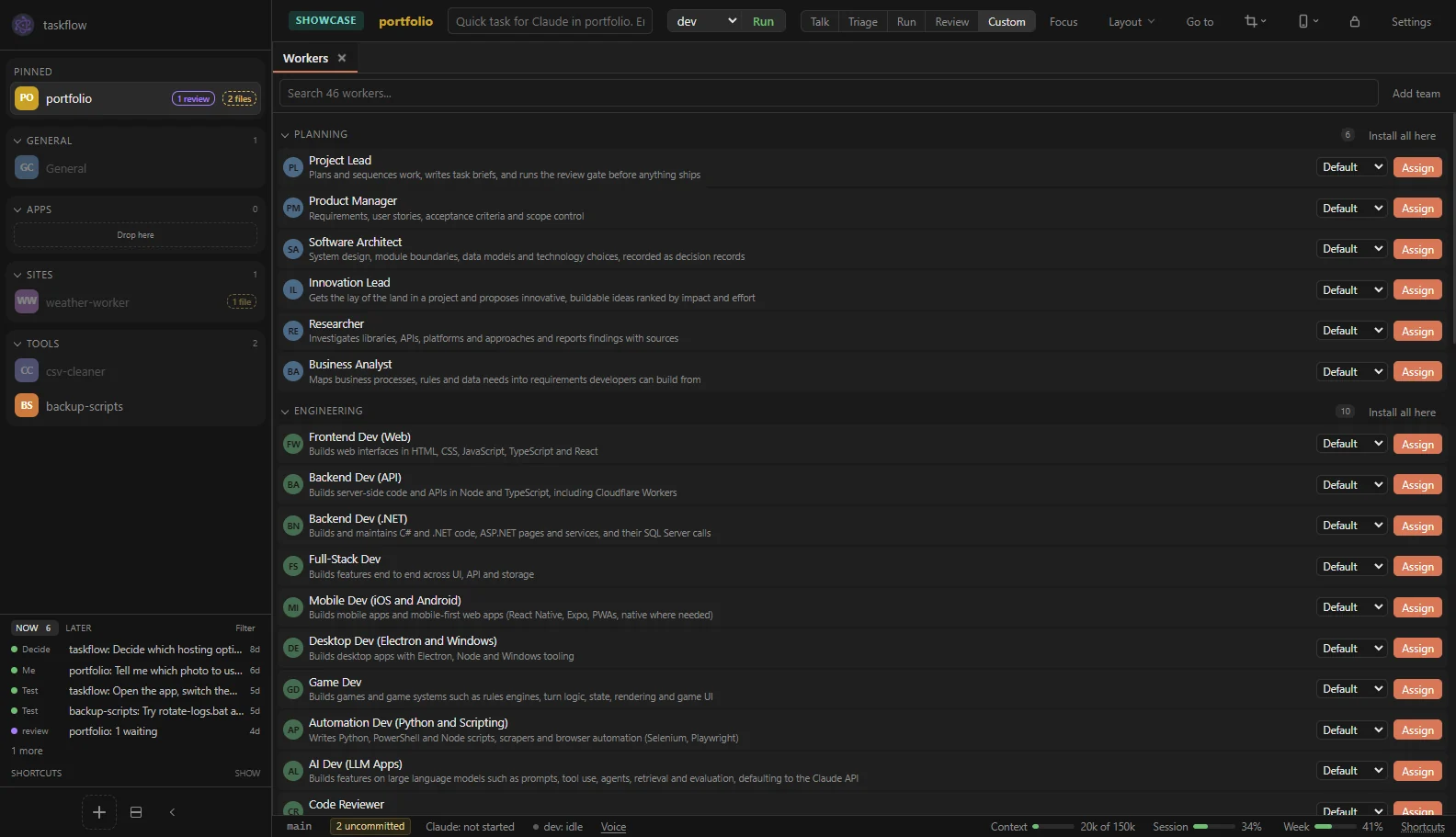
Workers
A library of specialist workers
46 workers in eight teams: planning, engineering, design, testing, security, platform, data and support.
Each is a Claude Code agent with a job title and a speed. Quick, Balanced or Thorough sets the model, effort and turn limit.
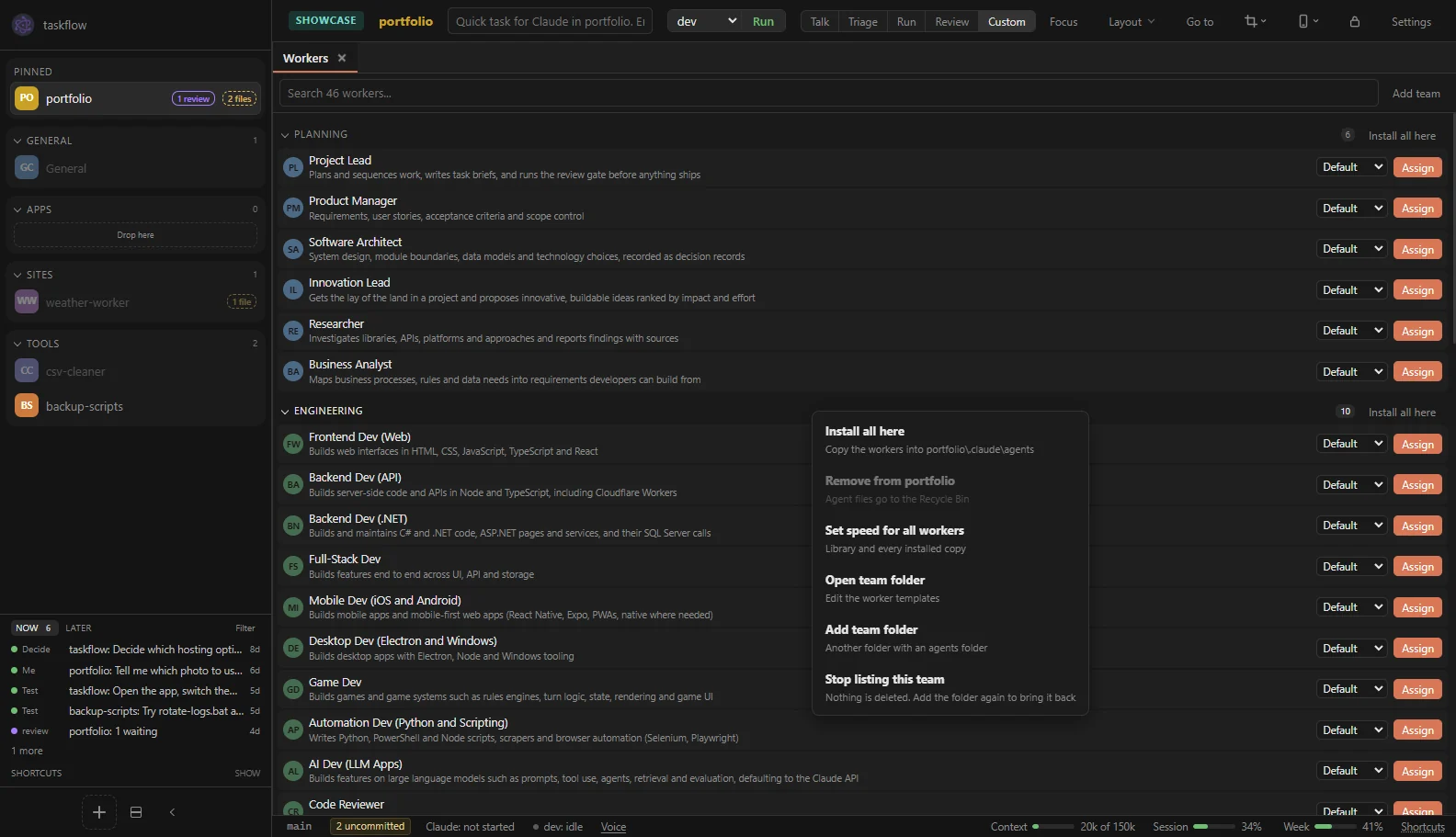
Workers
Teams you control
Install a whole team into a project in one click, with its settings filled in for that project.
Set every worker's speed at once, everywhere or just in this project. Teams are plain folders you can edit.
Workers
Hand a task to a worker
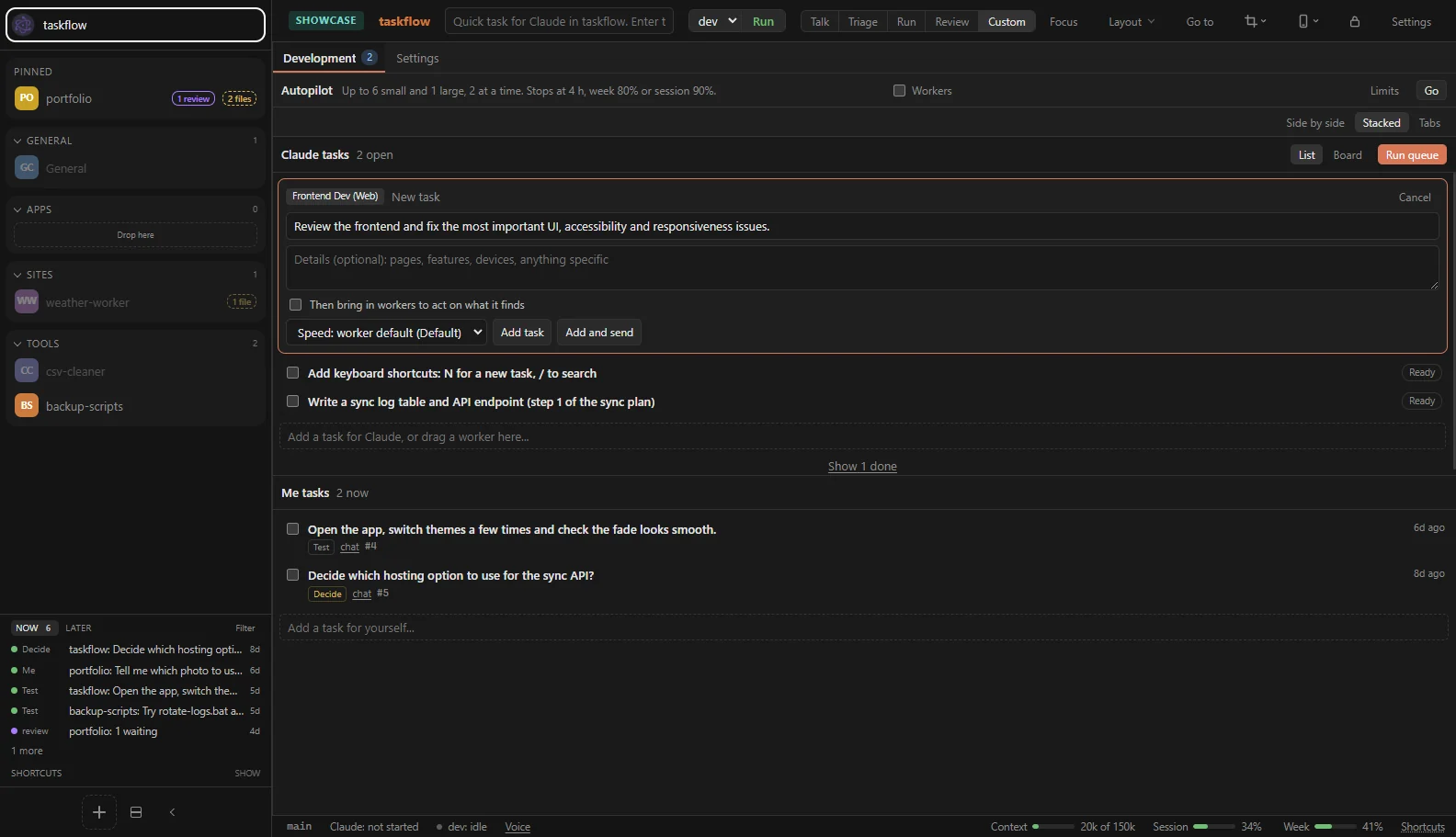
Assign, or drag a worker onto the board, opens a task prefilled with that worker's brief.
Add details, pick a speed, and optionally let it bring in more workers to act on what it finds.
Claude delegates to that worker, and its progress shows as its own lane under the chat.
Taskboard
Claude tasks and Me tasks
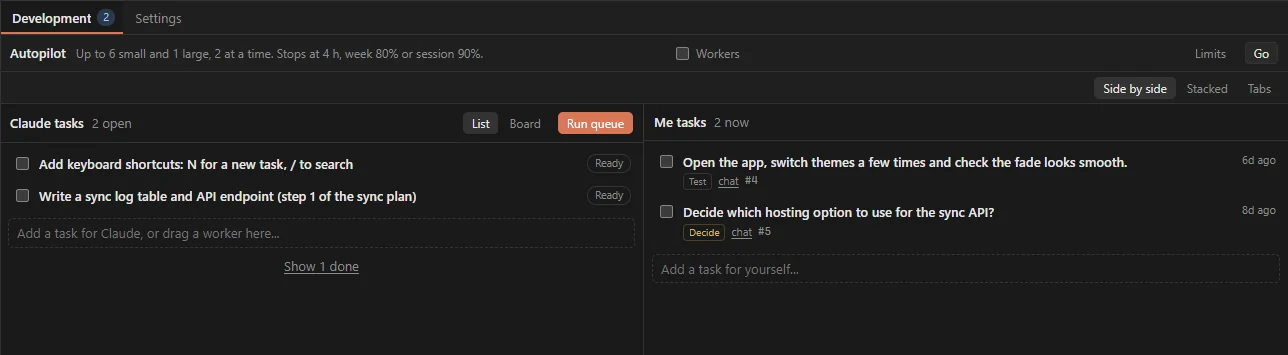
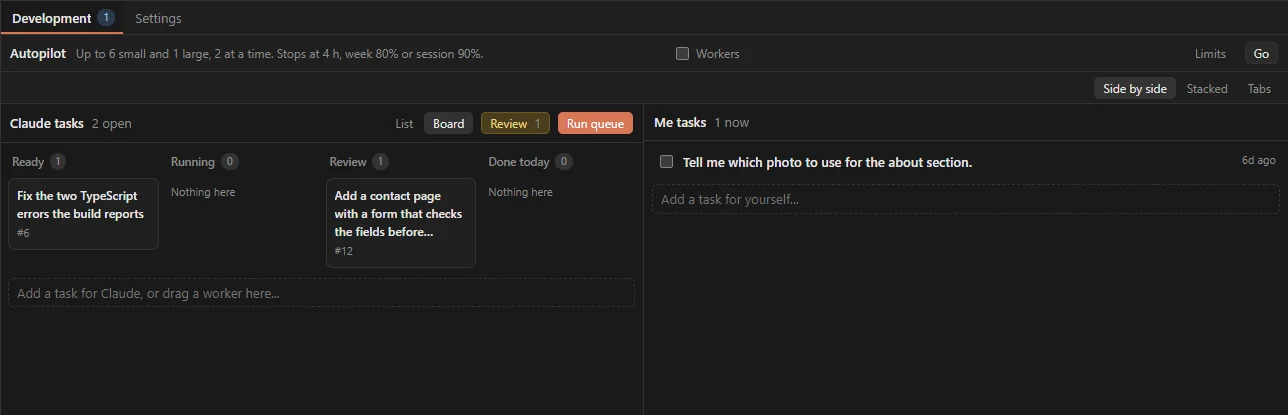
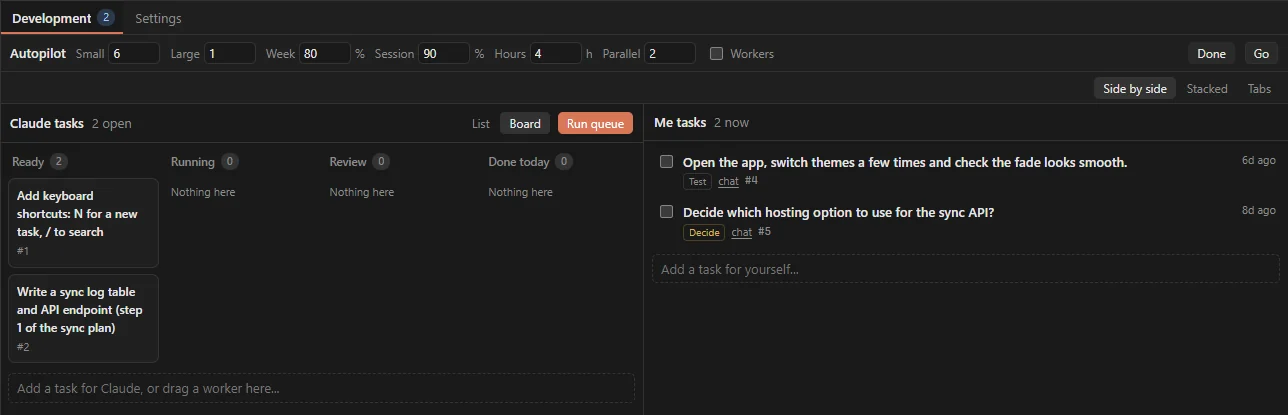
Each project has two lanes: work for Claude, and things only you can do, such as test, decide or answer.
Run one task in a chat, run the whole queue, or send one to a background builder.
Taskboard
Every action in one drawer
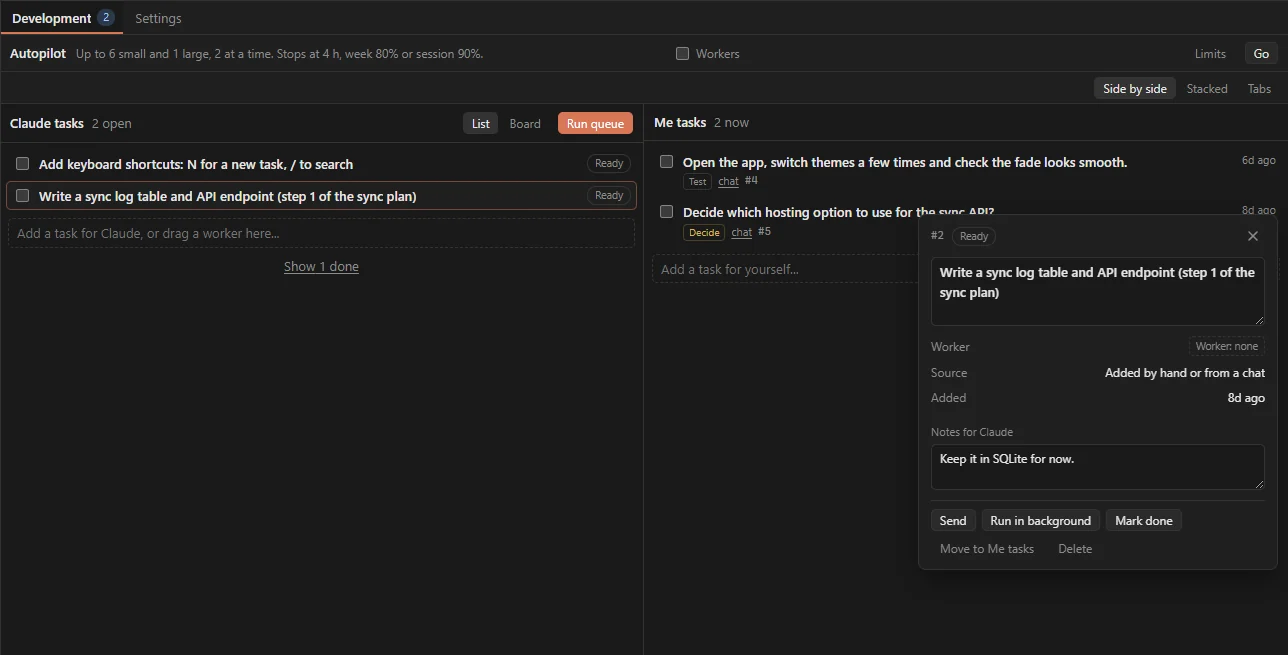
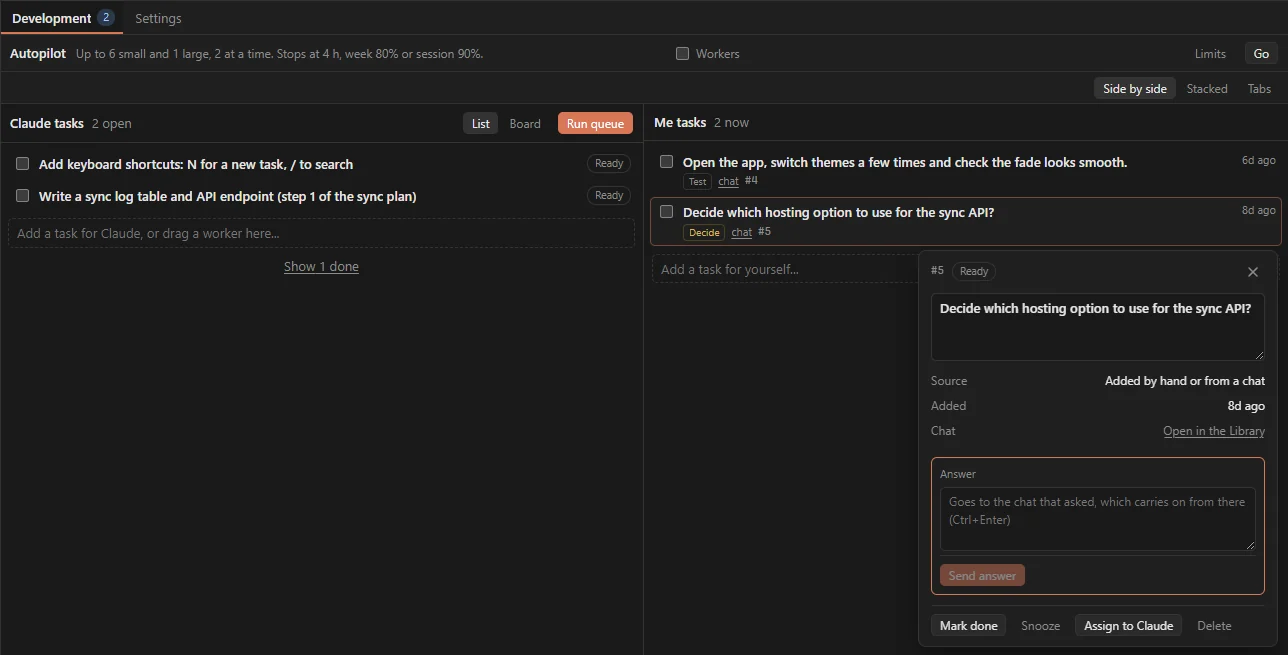
Click a task to open its drawer; J and K move between tasks.
Me tasks keep a link to the chat that asked, so an answer goes straight back to it. They can also be snoozed or handed to Claude with a note.
Taskboard
Board view and autopilot
Autopilot plans sized tasks for the project and works through them with background builders, inside limits you set.
It stops at the first limit and never ships: every result waits in Review.
Rail and Inbox
Know what needs you, everywhere
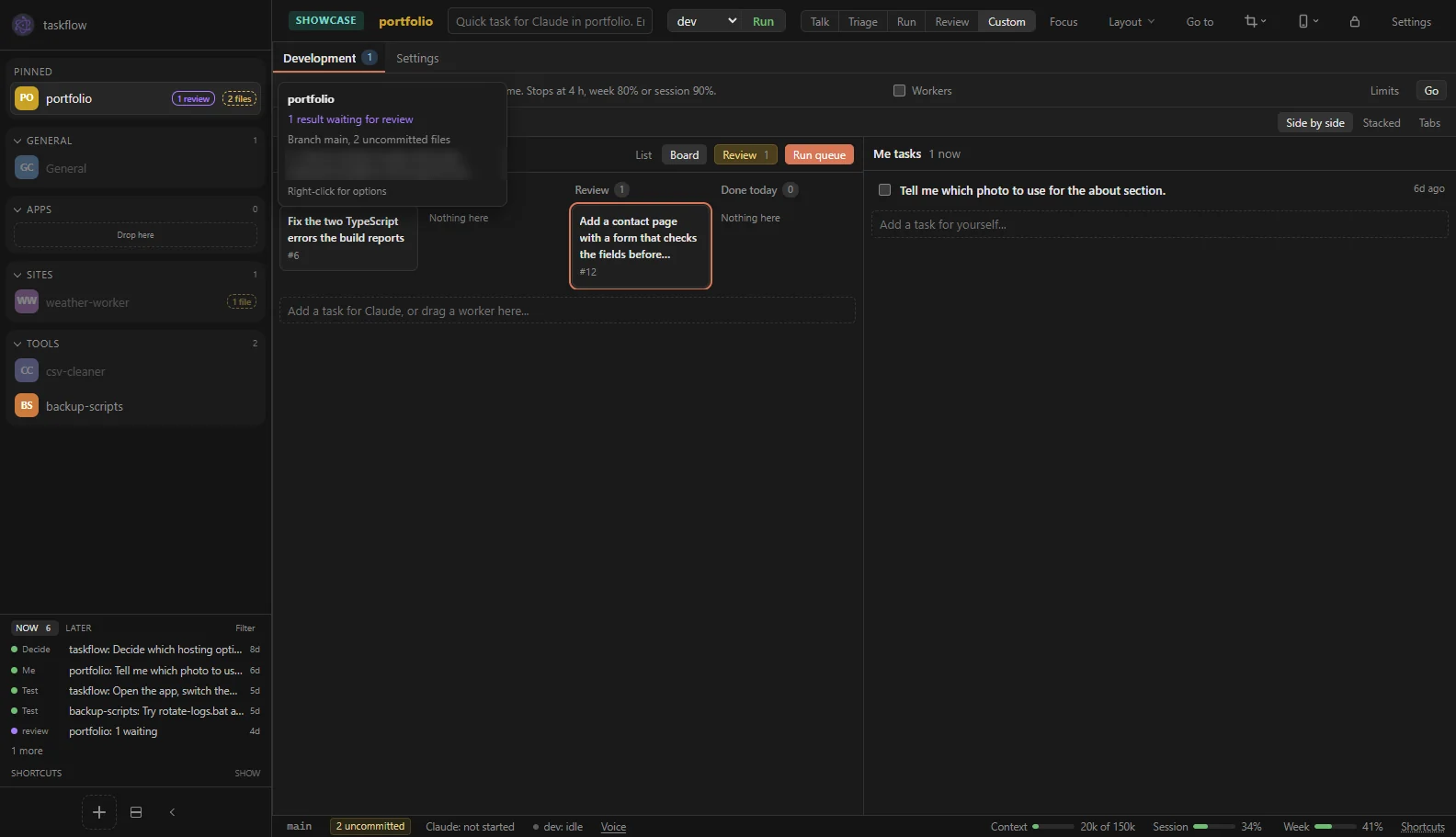
The rail shows at most two signals per project: needs you, reviews waiting, uncommitted files.
The Inbox lists every wait across projects, oldest first, with Now and Later tabs and snooze.
Builders
Builders work on their own branch
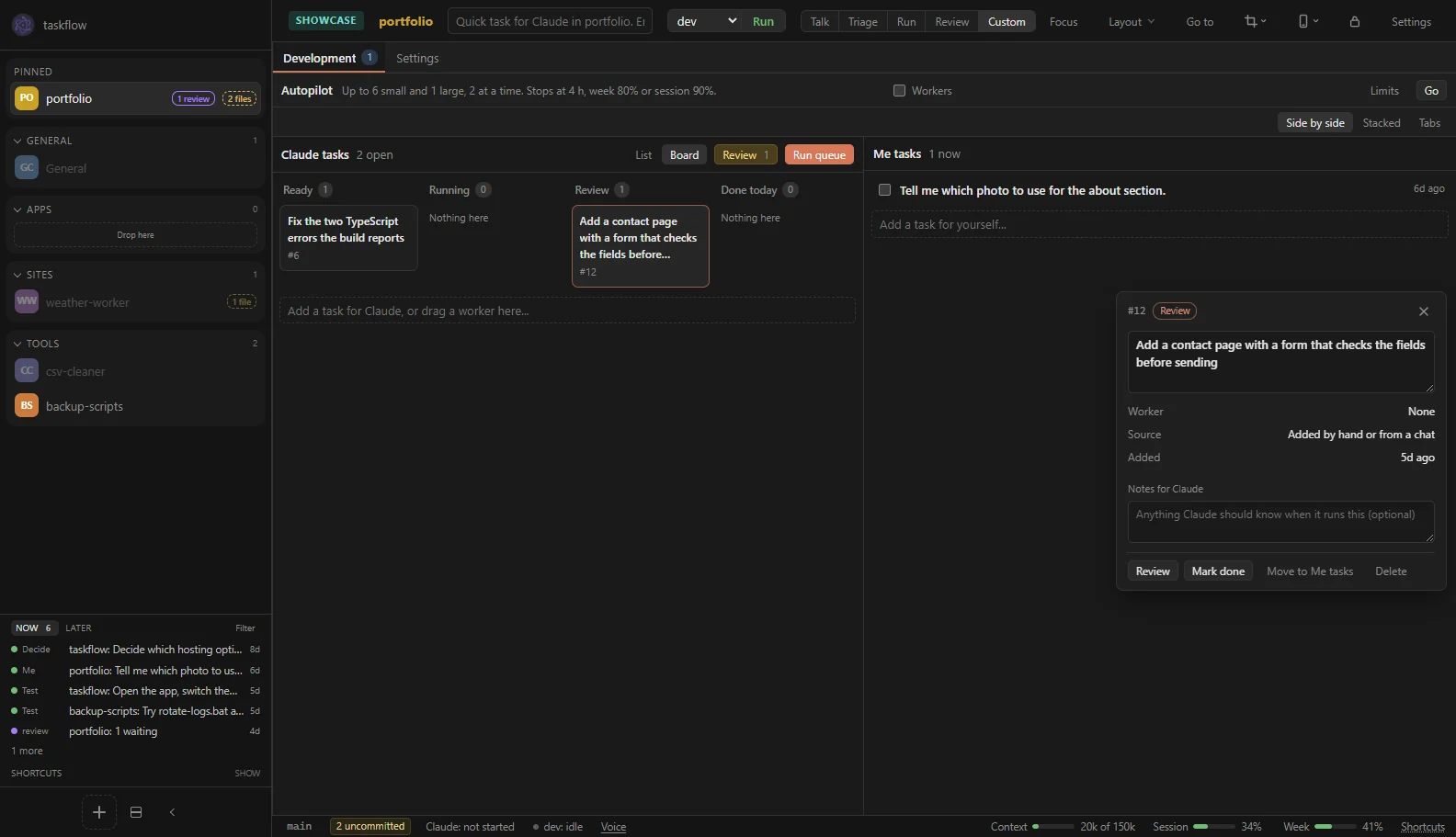
A task can run as a background builder: its own chat, in its own git worktree, on a claude/task branch, alongside everything else.
When it finishes, the task moves to Review and the project gets a review chip in the rail.
Review
Review before anything lands
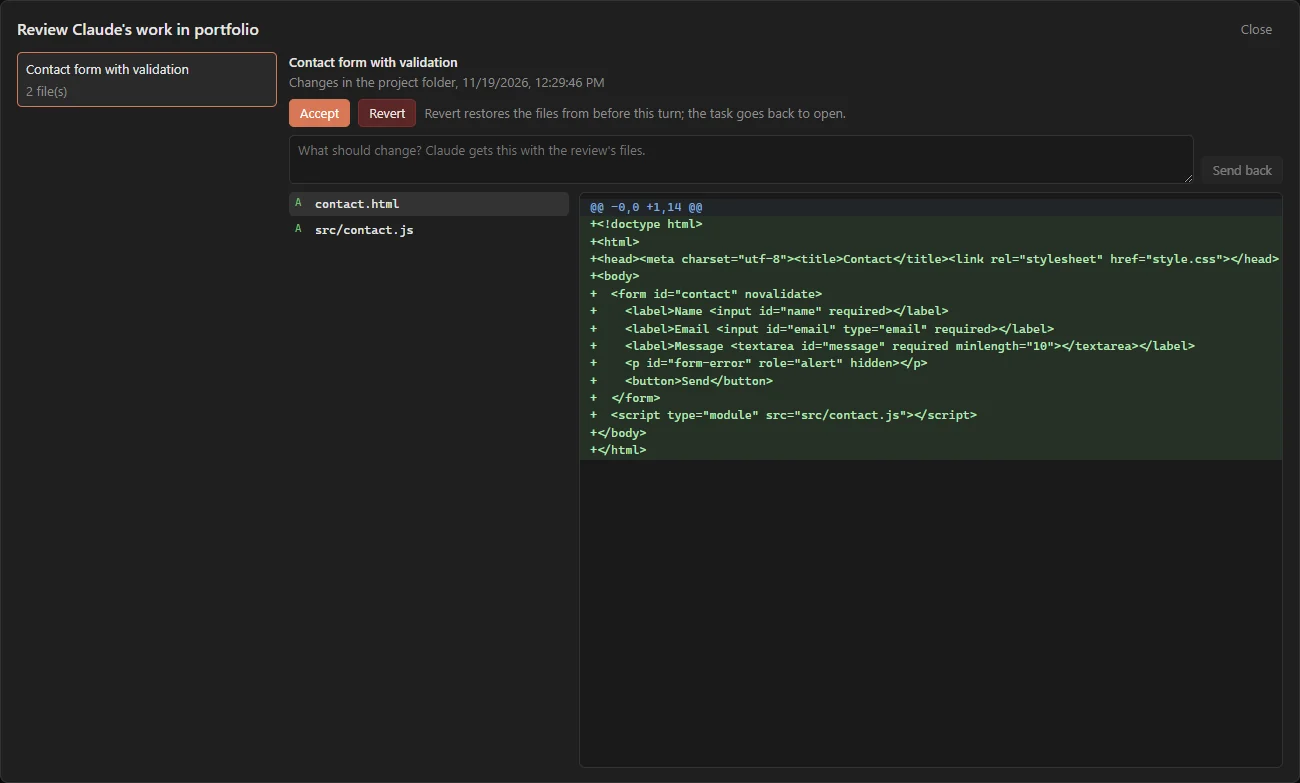
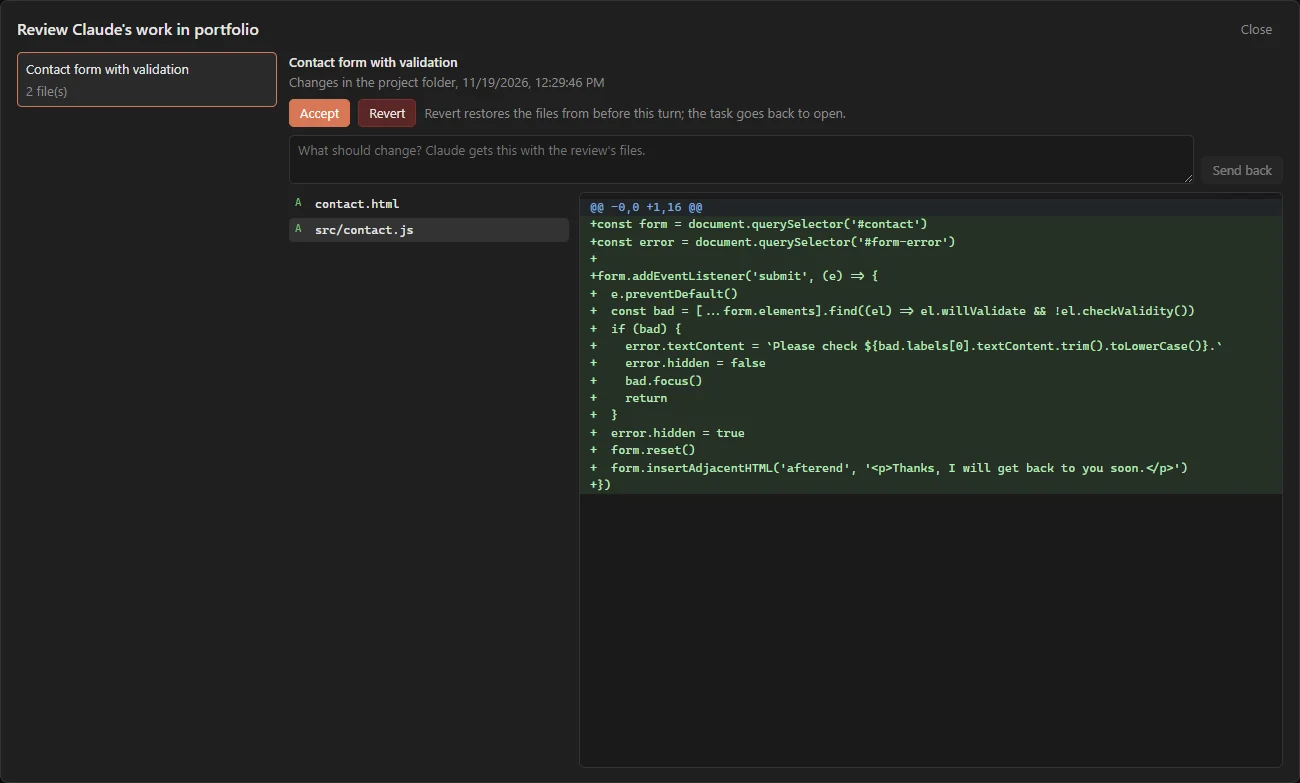
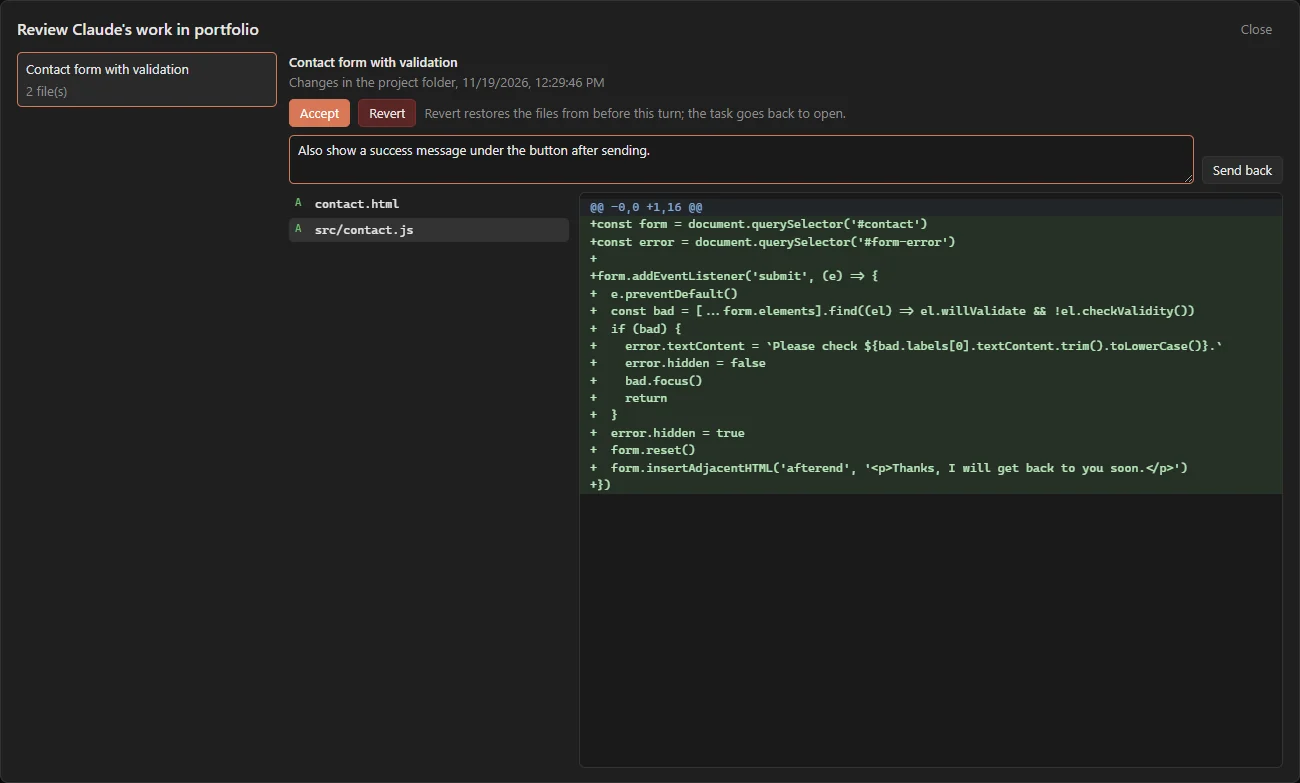
Before and after every turn, the IDE snapshots the project privately, so every change can be reviewed and undone.
Accept keeps it, Revert puts the files back, Send back returns your note with the files to the chat that made the change.
Builders
Every builder leaves a record
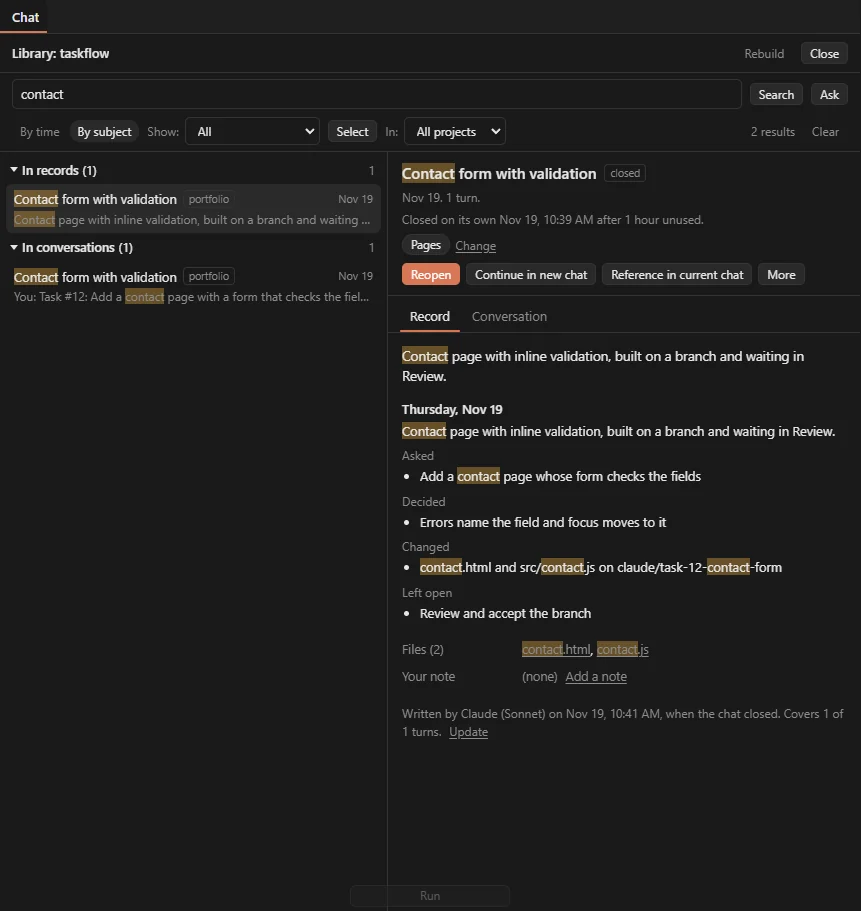
The builder's chat sits in the Library like any other, and its record names the branch.
Anyone can see what was asked, what changed and what is still open. Here: review and accept the branch.